Create your account, verify your email, and configure your workspace.
Creating Your Account
To get started, visit the registration page and fill in:
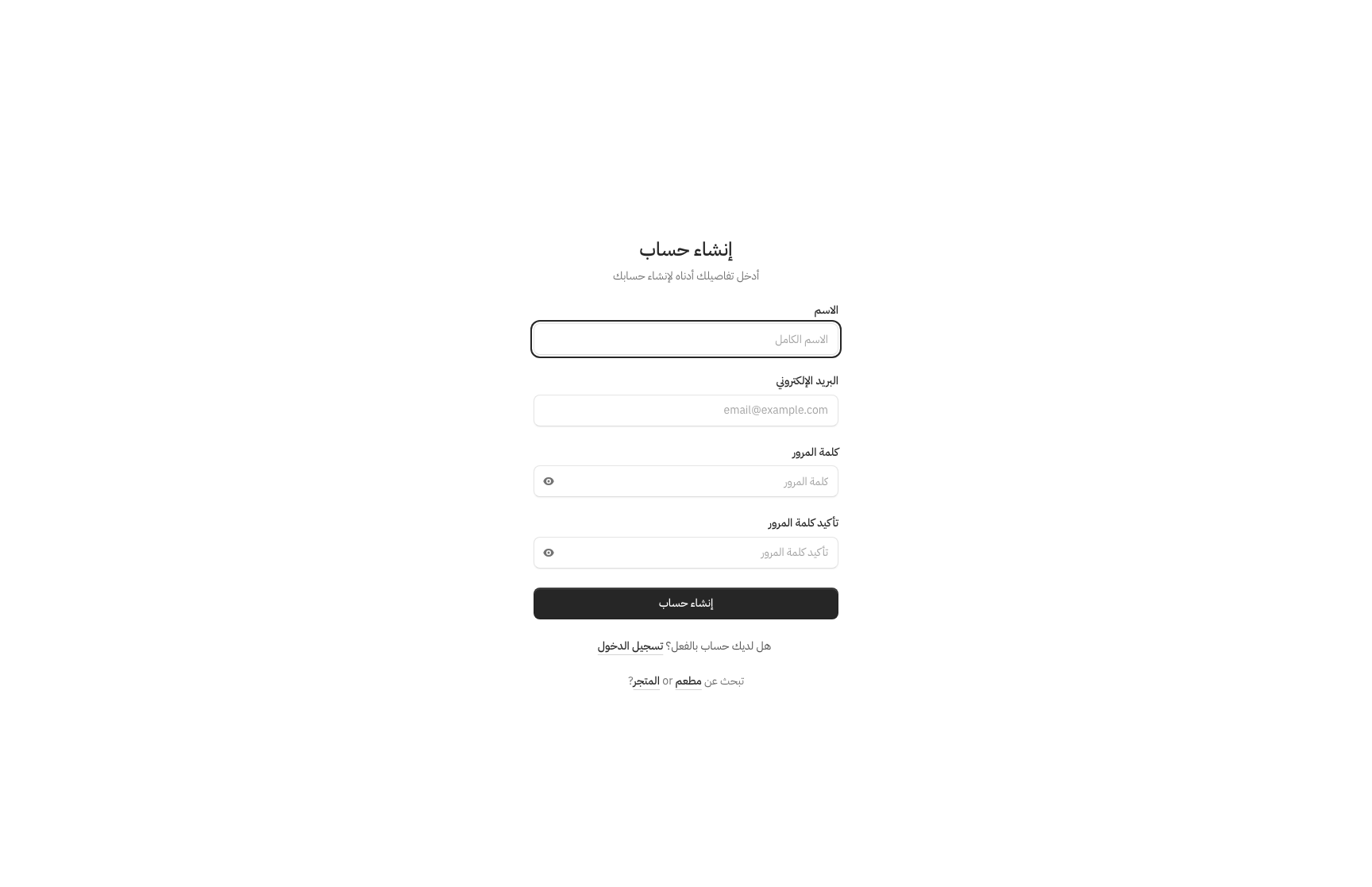
- Full Name — Your display name across the platform.
- Email Address — Used for login and notifications. Must be unique.
- Password — Minimum 8 characters. Use a strong, unique password.
Click Register to create your account.
Email Verification
After registering, you will receive a verification email. Click the link in the email to verify your address. You must verify your email before accessing most features. If you do not receive the email, check your spam folder or click Resend Verification on the dashboard.
Choosing Your Account Type
During initial setup, you will be asked to choose your account type:
- Publishing — For blogs, portfolios, landing pages, and content-driven sites.
- Restaurant — For restaurants and cafes with digital menus, QR ordering, and kitchen display.
- Shop — For online stores with products, inventory, and order management.
Your account type determines which features and settings are available. You can change your account type later from your workspace settings.
Initial Profile Setup
After choosing your account type, complete your workspace profile:
- Workspace Name — The name of your business or project.
- Logo — Upload a logo that appears on your site and dashboard.
- Description — A short description of your workspace.
Two-Factor Authentication
For added security, enable two-factor authentication (2FA):
- Go to Settings > Security.
- Click Enable 2FA.
- Scan the QR code with an authenticator app (Google Authenticator, Authy, etc.).
- Enter the verification code to confirm.
Once enabled, you will be prompted for a code from your authenticator app each time you log in. Recovery codes are provided during setup — store them in a safe place in case you lose access to your authenticator.