How QR code ordering works, from generating codes to customer checkout.
Overview
QR code ordering lets your customers place orders directly from their phones. Each table gets a unique QR code that links to your digital menu. No app download is required — it works in any mobile browser.
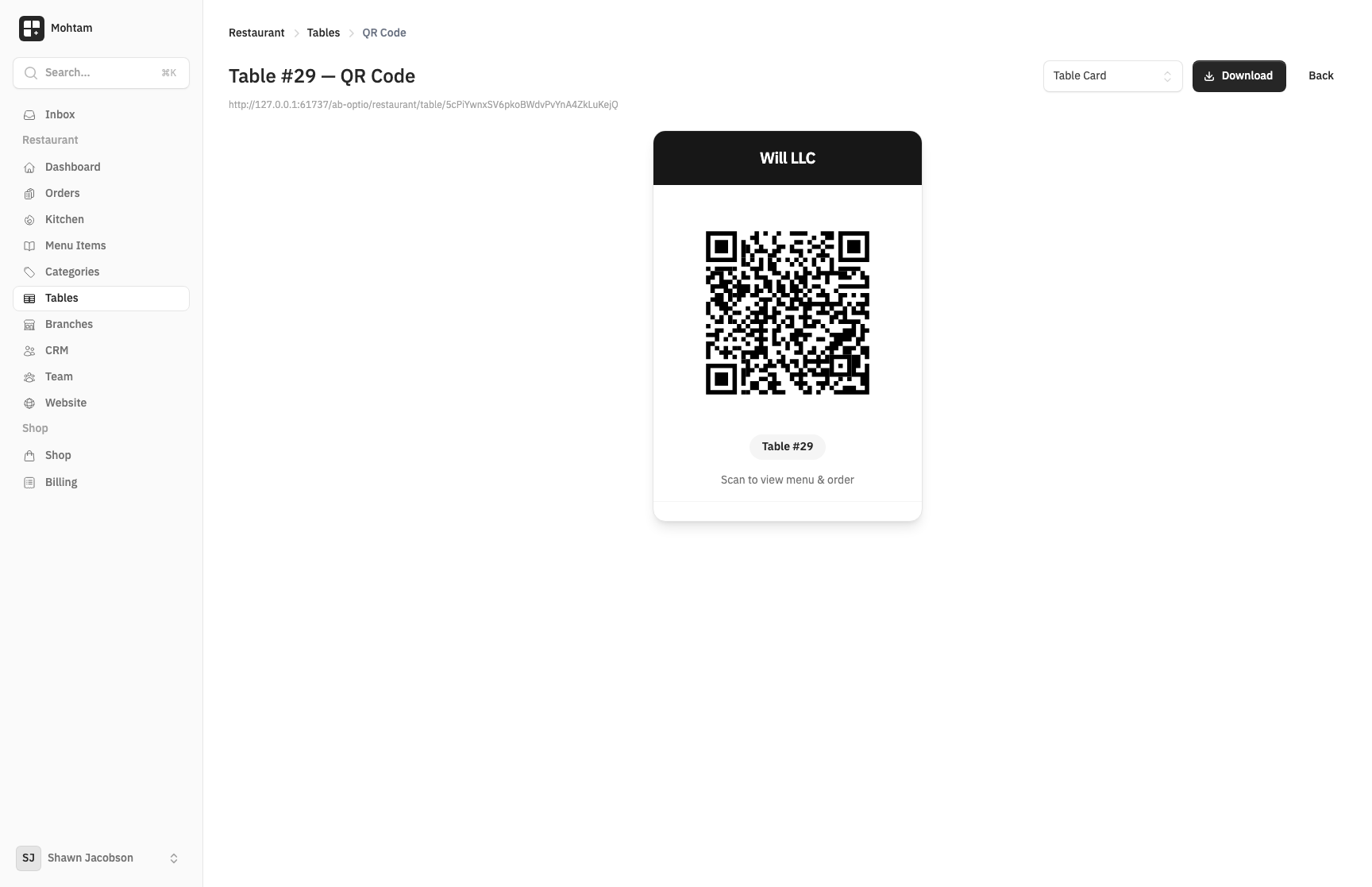
Generating QR Codes
Each table in your restaurant has its own QR code. To generate them:
- Go to the Tables section.
- Create your tables (or select existing ones).
- Click the QR code icon on any table to download or print its code.
Each QR code encodes the table number, so orders are automatically assigned to the correct table.
Customer Ordering Flow
When a customer scans a table's QR code, here is what happens:
- Scan — The customer scans the QR code with their phone camera. The menu opens in their browser.
- Browse Menu — They see your categories and items with prices, descriptions, and images. They can filter by allergens or search for specific items.
- Add to Cart — Customers tap items to add them to their cart, select any modifiers or add-ons, and adjust quantities.
- Checkout — They review their cart, see the subtotal with tax, and confirm the order.
- Pay — Depending on your setup, customers can pay online through the payment gateway or choose to pay at the counter.
After placing the order, customers see your custom success message and can track their order status.
Printing QR Cards
For a professional look, download and print QR code cards for each table. The downloaded QR codes are high-resolution and ready for printing. Many restaurants print them on table stands or laminated cards.
Tips
- Test the ordering flow yourself before going live by scanning a QR code.
- Keep your menu up to date and disable unavailable items promptly.
- Set clear preparation time estimates so customers know what to expect.