Shop Settings
Configure your store name, currency, shipping, checkout, and payment gateway.
Tip: Configure your Tap payment keys to enable online checkout. Get your keys from your Tap dashboard.
General Settings
Navigate to Shop Settings to configure your store:
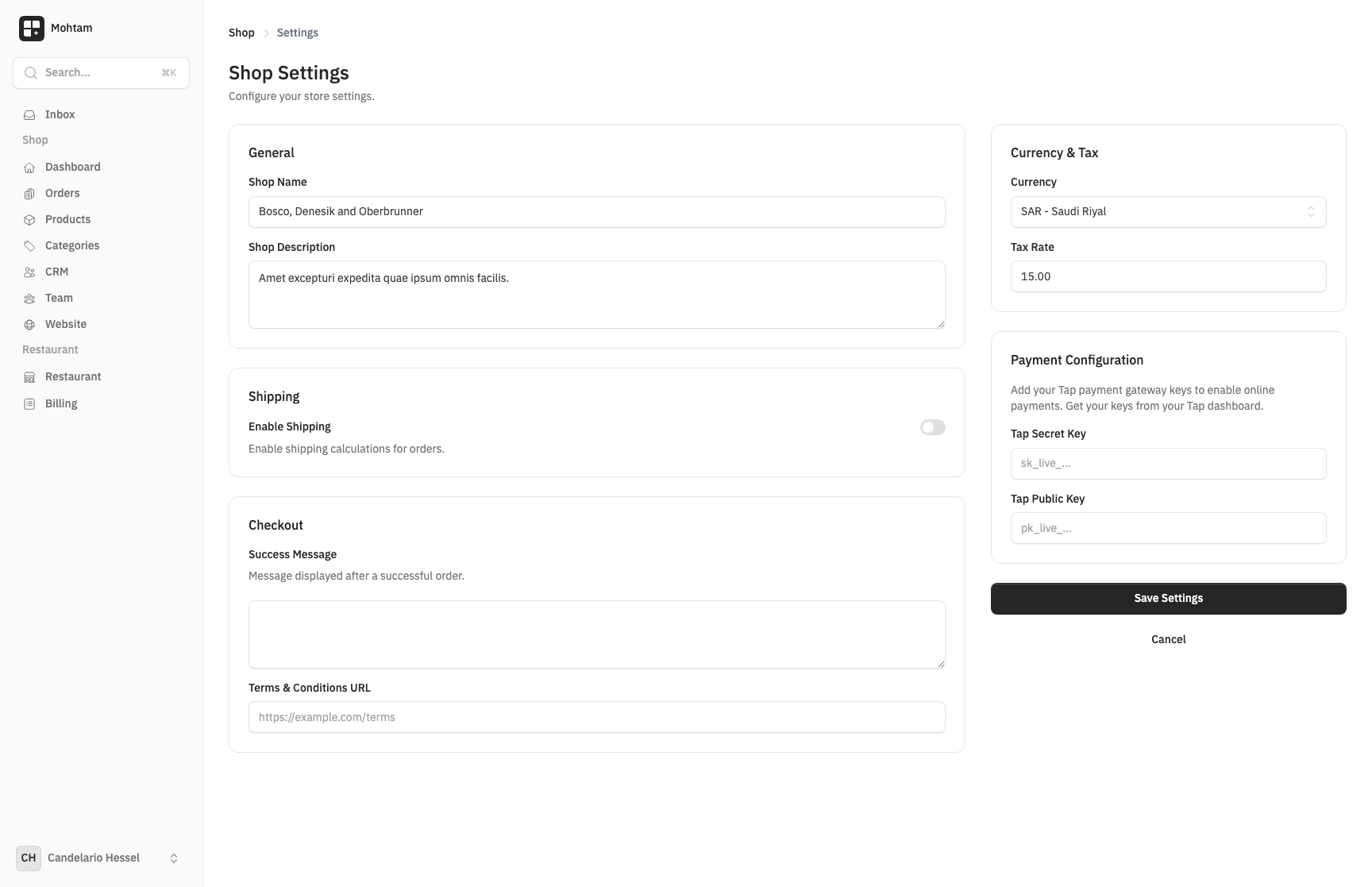
- Shop Name — The name displayed to customers on your storefront.
- Shop Description — A brief description of your store, used in metadata and search results.
Currency and Tax
- Currency — Select your store's operating currency (e.g., SAR, USD, KWD). All product prices and order totals are displayed in this currency.
- Tax Rate — Set a percentage-based tax rate applied to all orders. Enter
0if your products are tax-exempt. Tax is calculated on the order subtotal before shipping.
Shipping Configuration
Control how shipping works for your store:
- Enable Shipping — Toggle shipping on or off. When disabled, all orders are treated as non-physical.
- Flat Rate Shipping — Set a fixed shipping fee applied to every order.
- Free Shipping Threshold — Orders above this amount qualify for free shipping. Leave blank to disable free shipping.
Checkout Customization
- Terms URL — Link to your terms and conditions page. When set, customers must accept the terms before completing checkout.
- Checkout Fields — Configure which customer fields are required at checkout (phone number, shipping address, notes).
Payment Gateway (Tap)
To accept online payments, connect your Tap account:
- Log in to your Tap Dashboard and locate your API keys.
- Enter your Tap Public Key in the designated field.
- Enter your Tap Secret Key in the designated field.
- Save your settings and process a test transaction to verify the integration.
All payments are processed securely through Tap. You can monitor transactions and issue refunds directly from the Tap dashboard.