Track page views, create campaigns with UTM parameters, and monitor performance.
Prerequisites: You need at least one published page to start tracking analytics.
Overview
Built-in analytics help you understand how visitors interact with your site. Track page views, monitor campaign performance, and measure link clicks without needing third-party tools.
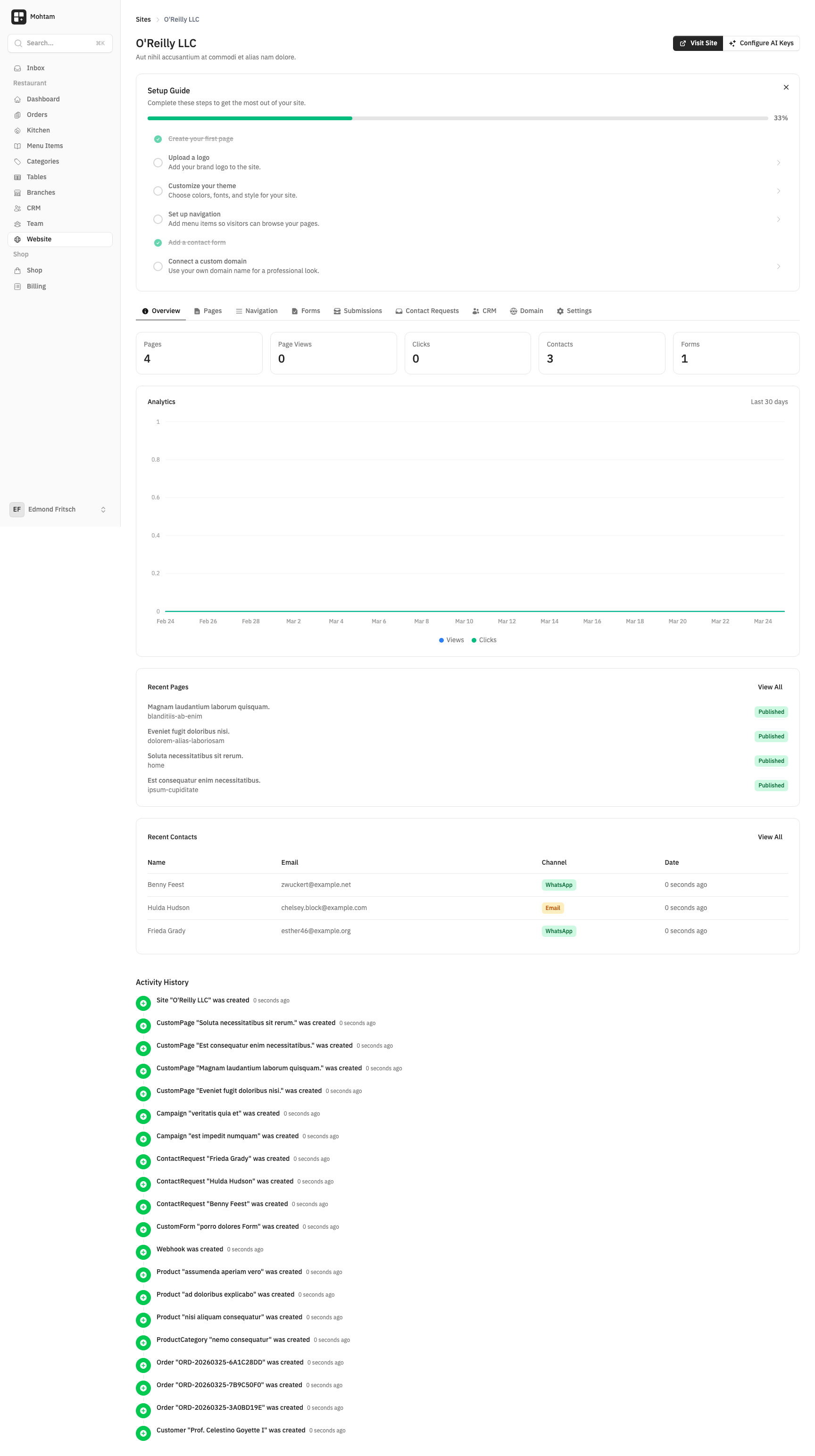
Analytics Dashboard
Your site's analytics dashboard shows key metrics at a glance:
- Page Views — Total views across all pages, with daily and weekly breakdowns.
- Top Pages — Which pages receive the most traffic.
- Traffic Sources — Where your visitors are coming from (direct, referral, campaign).
- Link Clicks — How many times tracked links on your pages are clicked.
Creating Campaigns
Campaigns use UTM parameters to track traffic from specific marketing efforts. To create a campaign:
- Go to your site's Campaigns section.
- Click Create Campaign and fill in the details:
- Campaign Name — A descriptive name (e.g., "Summer Sale 2024").
- UTM Source — Where the traffic comes from (e.g.,
twitter,newsletter). - UTM Medium — The marketing medium (e.g.,
social,email,cpc). - UTM Campaign — The campaign identifier (e.g.,
summer-sale).
- The platform generates a trackable URL you can share.
Link Event Tracking
Links on your pages can be tracked automatically. When a visitor clicks a tracked link, the event is recorded with:
- The page where the click happened
- The destination URL
- The timestamp
- Any associated campaign parameters
This data appears in your analytics dashboard under the link tracking section.
Using Campaign Data
Use campaign analytics to compare performance across different marketing channels. Identify which sources drive the most traffic, which campaigns convert best, and where to focus your marketing budget. Filter the dashboard by date range, campaign, or source to get the insights you need.