Configure your restaurant profile, billing, taxes, languages, and payment gateways.
Tip: To generate ZATCA-compliant invoices, fill in your VAT number and Commercial Register in the Billing & Invoice section.
Overview
Restaurant settings control how your restaurant appears to customers and how orders, payments, and invoices are processed. Access settings from your restaurant dashboard.
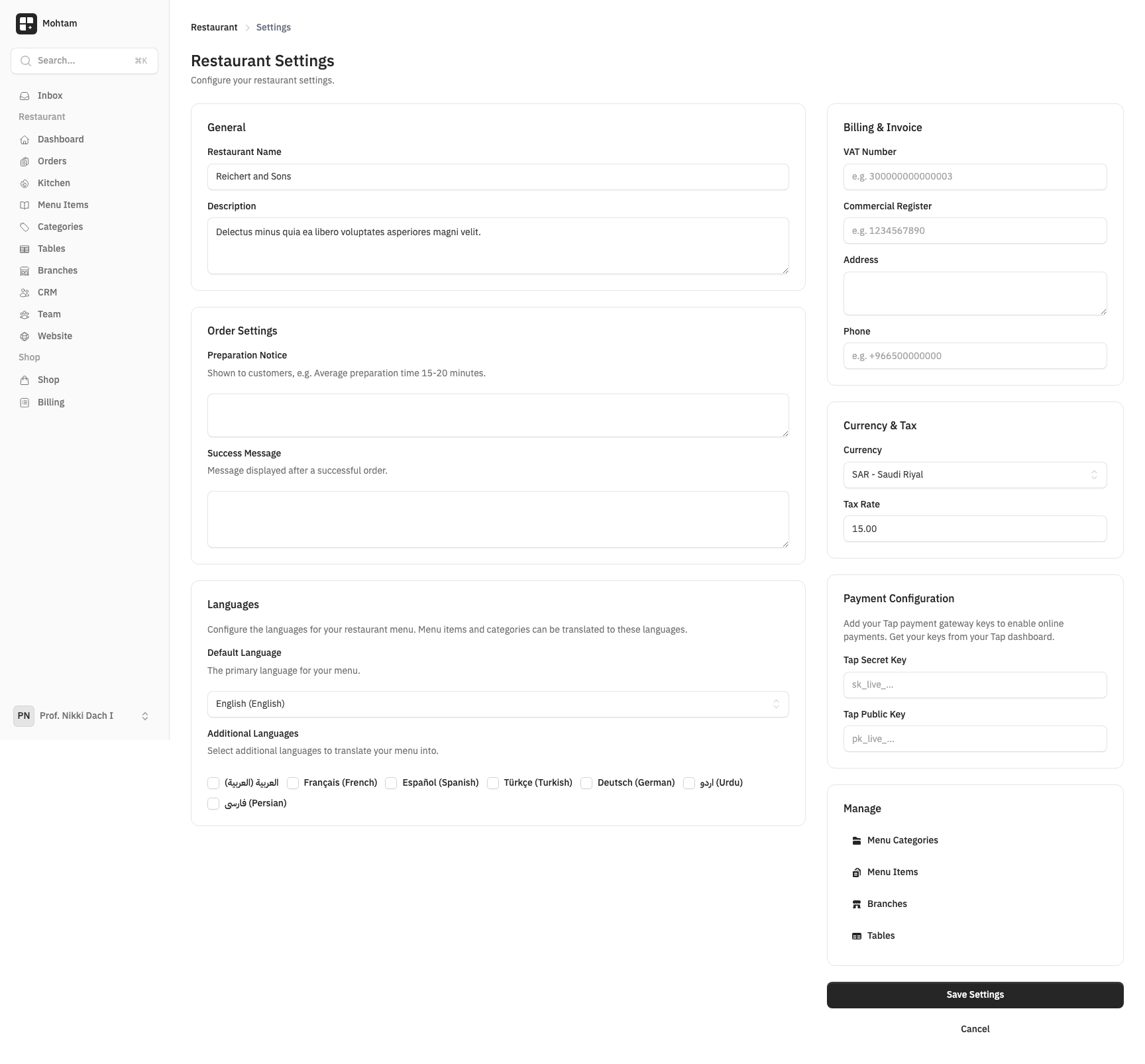
Basic Information
- Restaurant Name — The name displayed to customers on the digital menu and receipts.
- Description — A short description of your restaurant, cuisine type, or specialty.
- Currency — The currency used for menu prices and invoices (e.g., SAR, USD, EUR).
- Tax Rate — The tax percentage applied to all orders. This is calculated automatically at checkout and displayed on invoices.
Customer-Facing Messages
- Preparation Notice — A message shown to customers after they place an order (e.g., "Your order will be ready in approximately 15-20 minutes").
- Success Message — A confirmation message customers see immediately after checkout (e.g., "Thank you! Your order has been received").
Languages
Add the languages your menu supports. The default language determines the primary menu display. Additional languages allow customers to switch to their preferred language when browsing your menu. Each language requires translated menu content.
Billing Information
For ZATCA-compliant invoicing (required in Saudi Arabia), fill in:
- VAT Number — Your tax identification number.
- Commercial Register — Your commercial registration number.
- Address — Your official business address as it should appear on invoices.
This information is printed on all invoices and electronic receipts.
Payment Gateway Setup
To accept online payments through QR code ordering, configure your payment gateway:
- Go to the Payment section in settings.
- Enter your Tap payment gateway keys:
- Public Key — Used for client-side payment processing.
- Secret Key — Used for server-side payment verification.
- Save your keys and test with a small transaction.
Once configured, customers can pay online when placing QR code orders. You can still accept cash and card payments at the counter for manual orders.