Organize your product catalog with categories and subcategories.
Why Use Categories?
Categories help customers browse your store efficiently. A well-organized category structure makes it easier for shoppers to find what they are looking for and improves the overall shopping experience.
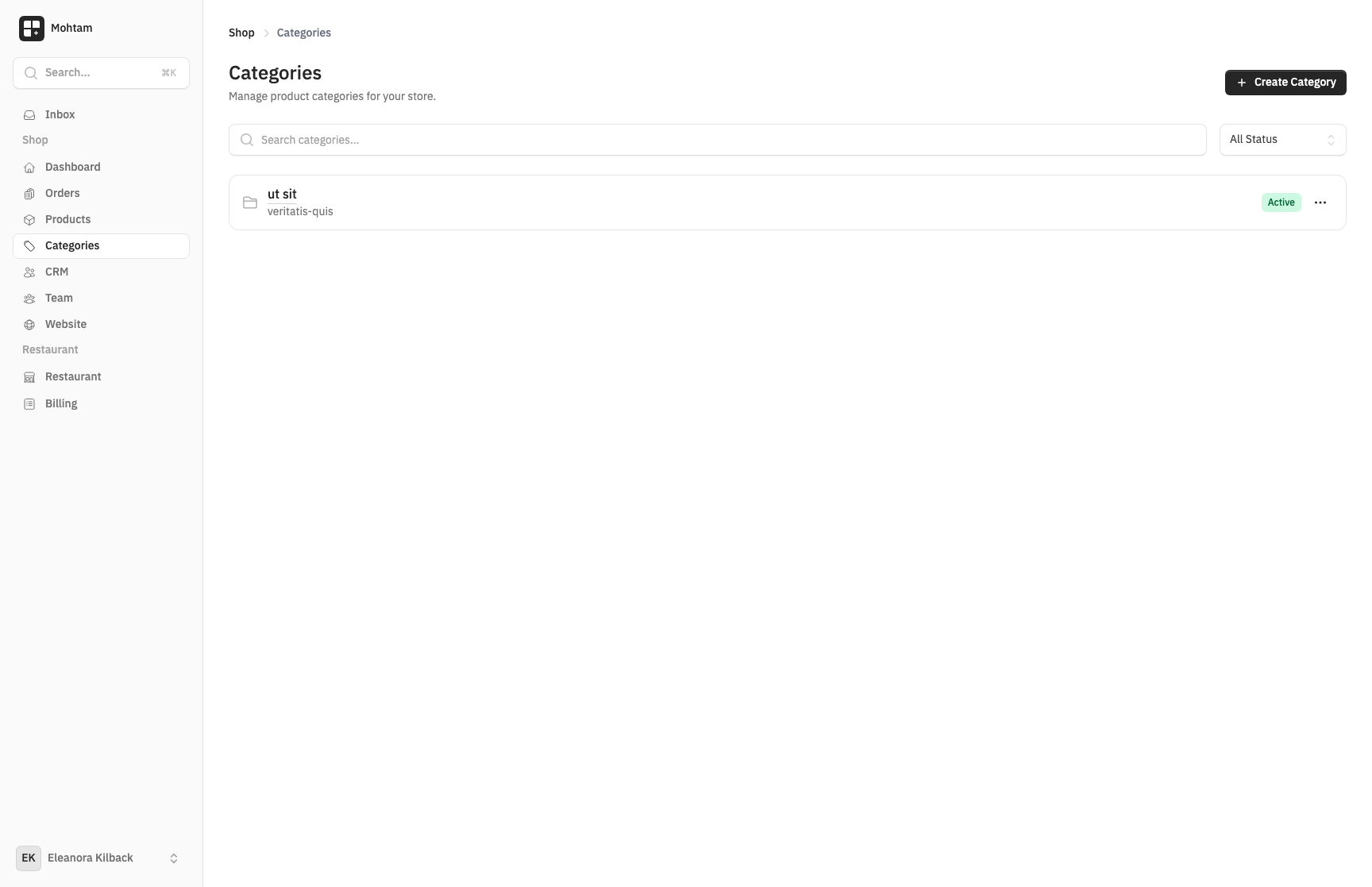
Creating Categories
Go to Shop > Categories and click Add Category. Each category requires:
- Name — A descriptive name for the category (e.g., "Electronics", "Clothing").
- Description — An optional text description displayed on the category page.
- Image — An optional category image for visual navigation.
Subcategories (Parent-Child Hierarchy)
Categories support a parent-child hierarchy. When creating or editing a category, select a Parent Category to nest it underneath. For example:
- Clothing
- Men's Clothing
- Women's Clothing
- Kids' Clothing
- Electronics
- Phones
- Accessories
There is no limit to the nesting depth, but keeping your hierarchy to two or three levels is recommended for usability.
Assigning Products
A single product can belong to multiple categories. When editing a product, use the category selector to assign it to one or more categories. This is useful when a product fits naturally into several sections of your catalog — for example, a phone case could appear under both "Accessories" and "Phones."
Sorting
Categories are displayed in the order you define. Drag and drop categories in the list view to reorder them. Products within a category can also be sorted by name, price, or date added. The sort order you set determines how products appear to customers browsing that category.