Track stock levels, set alerts, and manage product availability.
Enabling Stock Tracking
Stock tracking is configured per product. When editing a product, toggle Track Inventory to enable it. Once enabled, you must specify stock quantities before the product can be sold.
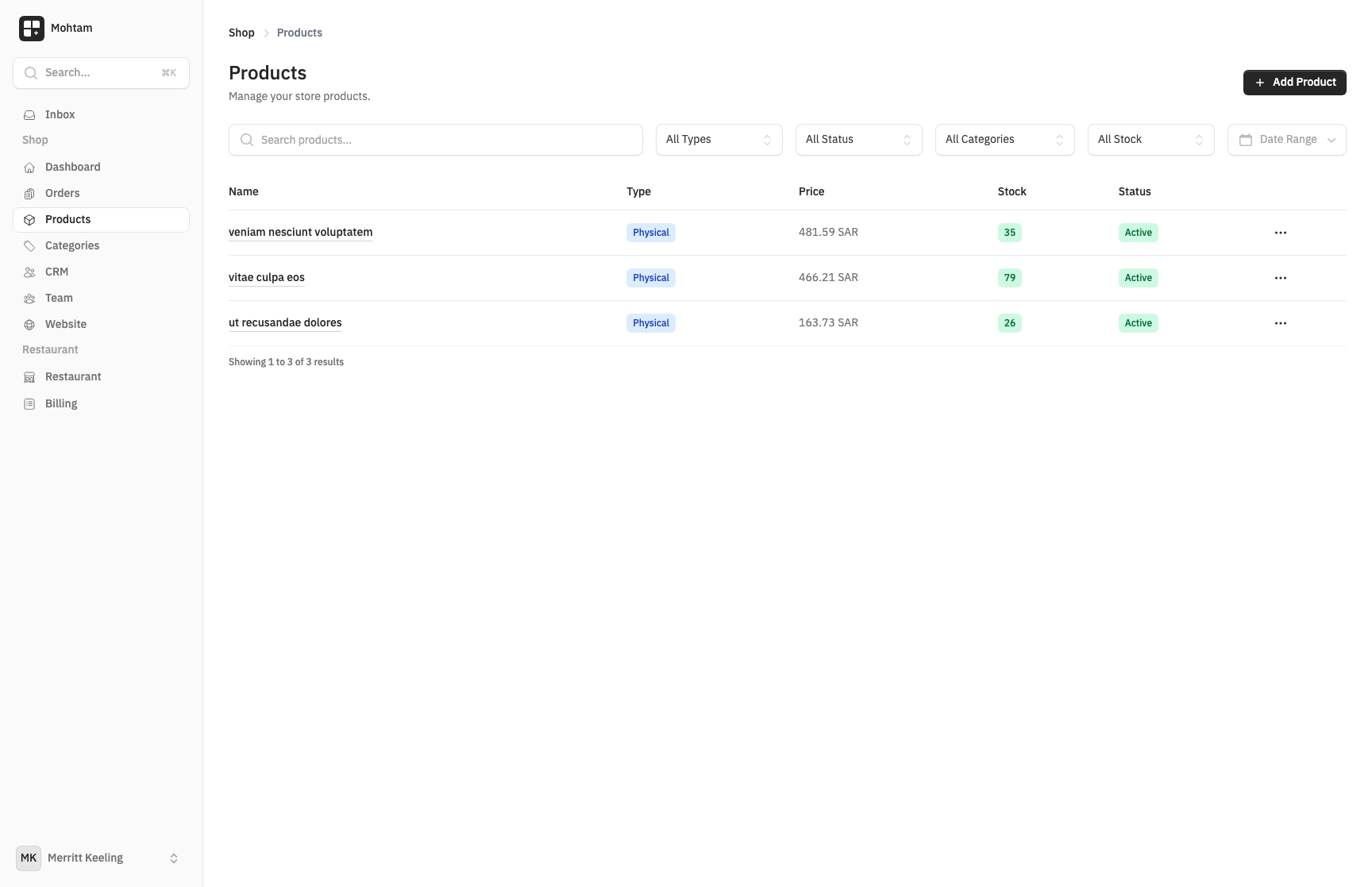
- Products without variants — Set the stock quantity directly on the product.
- Products with variants — Each variant maintains its own independent stock count. For example, a T-shirt in size M/Blue might have 25 units while size L/Red has 10 units.
Managing Stock Quantities
Update stock quantities from the product edit page. When an order is placed, stock is automatically decremented. When an order is cancelled, stock is restored.
You can also perform manual adjustments for situations like:
- Receiving new inventory from a supplier
- Correcting a counting error
- Writing off damaged goods
Low Stock Alerts
Set a low stock threshold to receive notifications when inventory drops below a certain level. This helps you reorder before running out. The threshold is configured per product and applies to each variant individually.
When any variant's stock falls below the threshold, the product is flagged with a low stock indicator on your Products list, making it easy to spot items that need restocking.
Out-of-Stock Behavior
When a product or variant reaches zero stock, you can control what happens:
- Hide the product — The product is no longer visible to customers.
- Show as out of stock — The product remains visible but cannot be purchased. Customers see an "Out of Stock" label.
Configure the default out-of-stock behavior in Shop Settings. This setting applies globally but can be overridden on individual products.