Create custom forms, collect submissions, and manage responses.
Plan Limits: Monthly submissions — Free: 50 · Pro: 500 · Business & Enterprise: Unlimited
Overview
Forms let you collect information from your site visitors. Use them for contact forms, feedback surveys, event registrations, and more. All submissions are stored in your dashboard for easy management.
Creating a Form
- Navigate to your site and open the Forms section.
- Click Create Form and give it a name (e.g., "Contact Us" or "Feedback Form").
- Use the form builder to add fields.
Available Field Types
- Text — A single-line text input for names, subjects, or short answers.
- Email — An email input with built-in format validation.
- Textarea — A multi-line text area for messages, comments, or detailed responses.
- Select — A dropdown menu where visitors choose from predefined options.
- Checkbox — A single checkbox for agreements, opt-ins, or yes/no questions.
Each field can be marked as required and given a custom label and placeholder text.
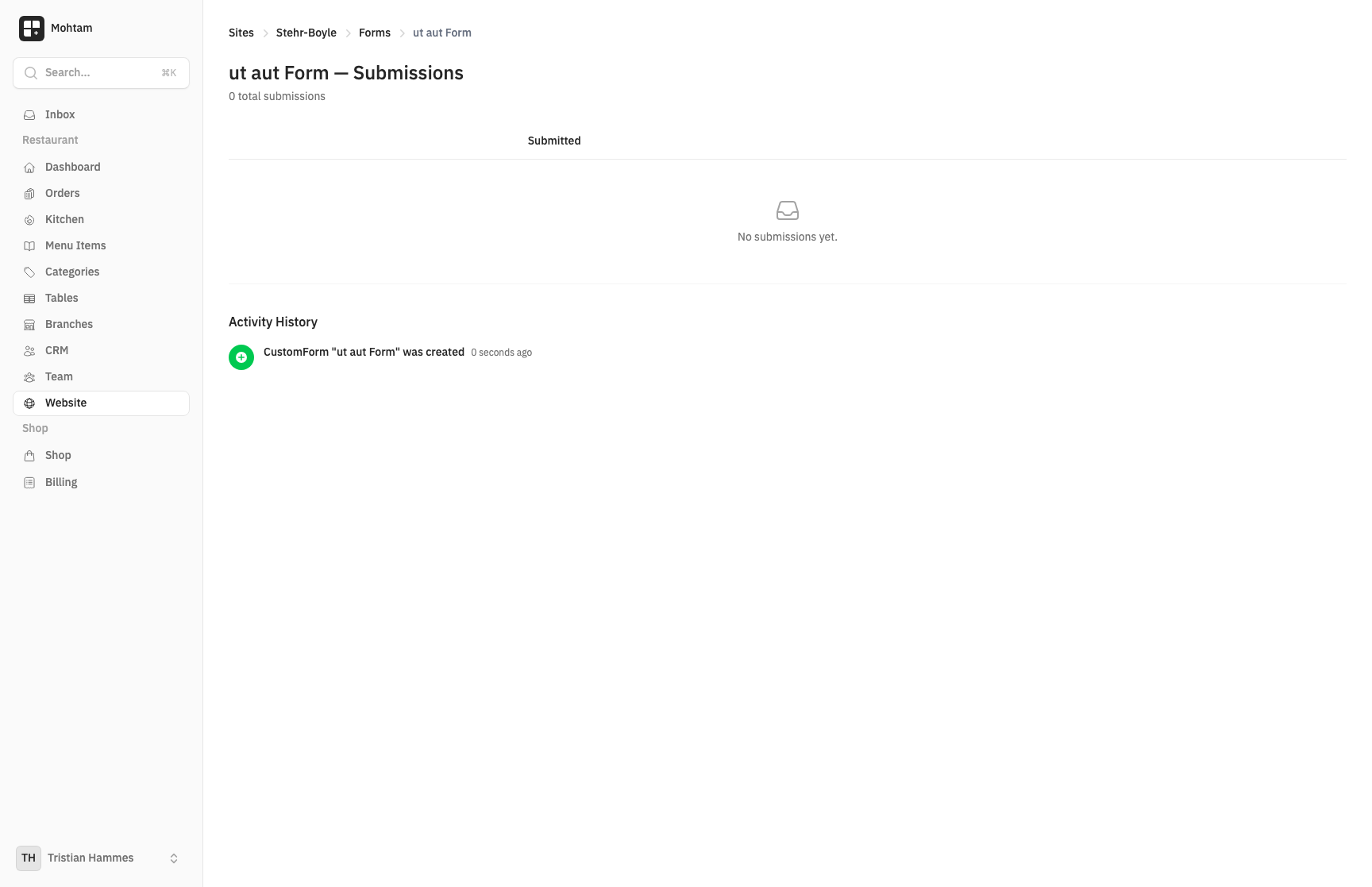
Viewing Submissions
All form submissions appear in the Submissions tab of your form. Each submission shows:
- The date and time it was received
- All field values the visitor entered
- The page where the form was submitted (if embedded)
You can browse, search, and export submissions from this view.
Form Notifications
Configure email notifications to receive an alert whenever a new submission arrives. Go to your form's settings to set up notification recipients. Multiple email addresses are supported.
Embedding Forms on Pages
To add a form to a page, use the Contact block in the page builder and select the form you want to embed. The form renders directly on the page, and submissions are automatically linked to the correct form.
You can embed the same form on multiple pages. All submissions are collected in one place regardless of which page they came from.