Create, manage, and process restaurant orders with payment and invoicing.
Prerequisites: To accept online payments via QR ordering, configure your Tap payment gateway keys in Restaurant Settings. Without keys, only cash/card-at-table payments are supported.
Overview
The Orders section is your central hub for managing all restaurant orders, whether they come from QR code customers or are entered manually by your cashier.
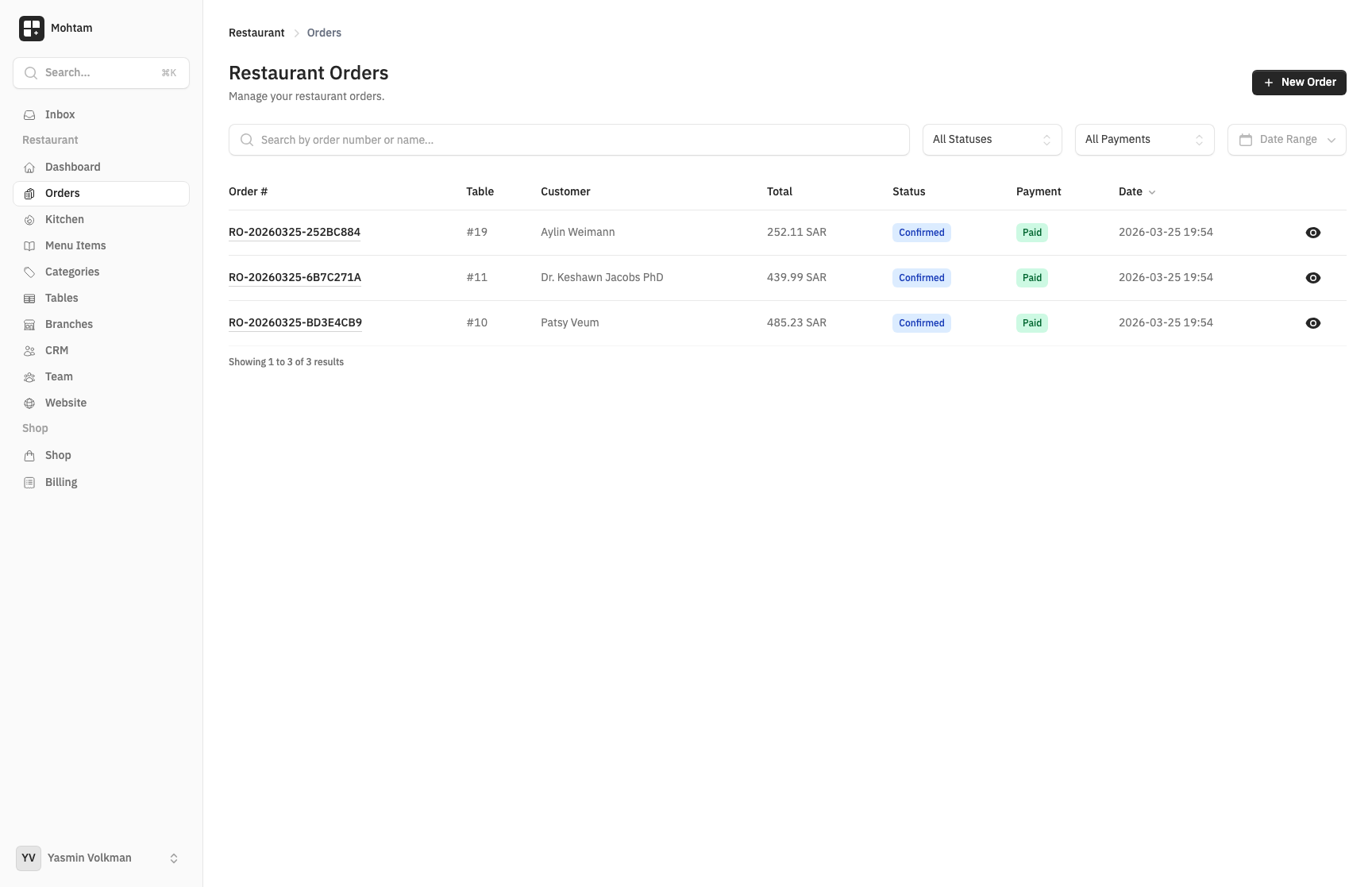
Creating Manual Orders
For walk-in customers or phone orders, you can create orders manually:
- Go to the Orders section and click New Order.
- Select the table (optional for takeaway orders).
- Browse the menu and add items with any modifiers.
- Review the order summary with subtotal and tax.
- Confirm the order — it immediately appears in the kitchen display.
Viewing Order Details
Each order shows:
- Table number and order timestamp
- Itemized list with quantities, modifiers, and individual prices
- Subtotal, tax, and total amounts
- Current status (Confirmed, Preparing, Ready, Served)
- Payment status (Paid or Unpaid)
Updating Order Status
Change an order's status by clicking the status button. Orders follow the progression: Confirmed, Preparing, Ready, Served. Status changes are reflected immediately on the kitchen display.
Processing Payments
To mark an order as paid:
- Open the order details.
- Click Mark as Paid.
- Select the payment method: Cash, Card, or Bank Transfer.
- The order is updated and recorded for your financial reporting.
Printing Bills
Generate a printable bill for any order. The bill includes your restaurant name, the itemized order, tax breakdown, and total. Bills are formatted for standard receipt printers.
ZATCA-Compliant Invoices
For businesses in Saudi Arabia, the platform generates ZATCA-compliant electronic invoices. These include all required fields: VAT number, commercial register, QR code with invoice data, and proper tax calculations. Make sure your billing information is complete in restaurant settings to enable this feature.